1. Dashboard
  2. Articles
  • Login
  • Register
  • Search
Security
  • Everywhere
  • Security
  • Articles
  • Pages
  • More Options
  1. Patisuit
  2. Articles
  3. Security

Passwords

  • Patisuit
  • July 28, 2025 at 8:00 AM
  • 409 Views
  • 0 Comments
Contents [hideshow]
  1. Risks of Using a Weak Password
  2. How to Construct a Strong Password
  3. Common Pitfalls
    1. Writing or saving in plain text
    2. Using a “burnt” password
    3. Sharing accounts
    4. Reusing your password
    5. Solutions ?

Risks of Using a Weak Password

Hackers target companies—both small and large—and manage to steal user credentials; in 2024 alone, Viamedias, Almerys, France Travail, Auchan, the French Football Federation (FFF), Picard, Boulanger, Norauto, SFR, and Free all experienced data breaches.
Passwords should be stored as hashes, an irreversible fingerprint—but if a password is too simple, a brute‑force attack (trying every combination) or a dictionary attack (testing known passwords and their variations) becomes feasible and is highly likely to succeed.

Once the password is discovered, the hacker can access your online data (email, photos, etc.), post on your behalf, or simply steal your accounts. One can easily imagine the reputational or financial impact on a company if false information is spread or financial records are exfiltrated.

How to Construct a Strong Password

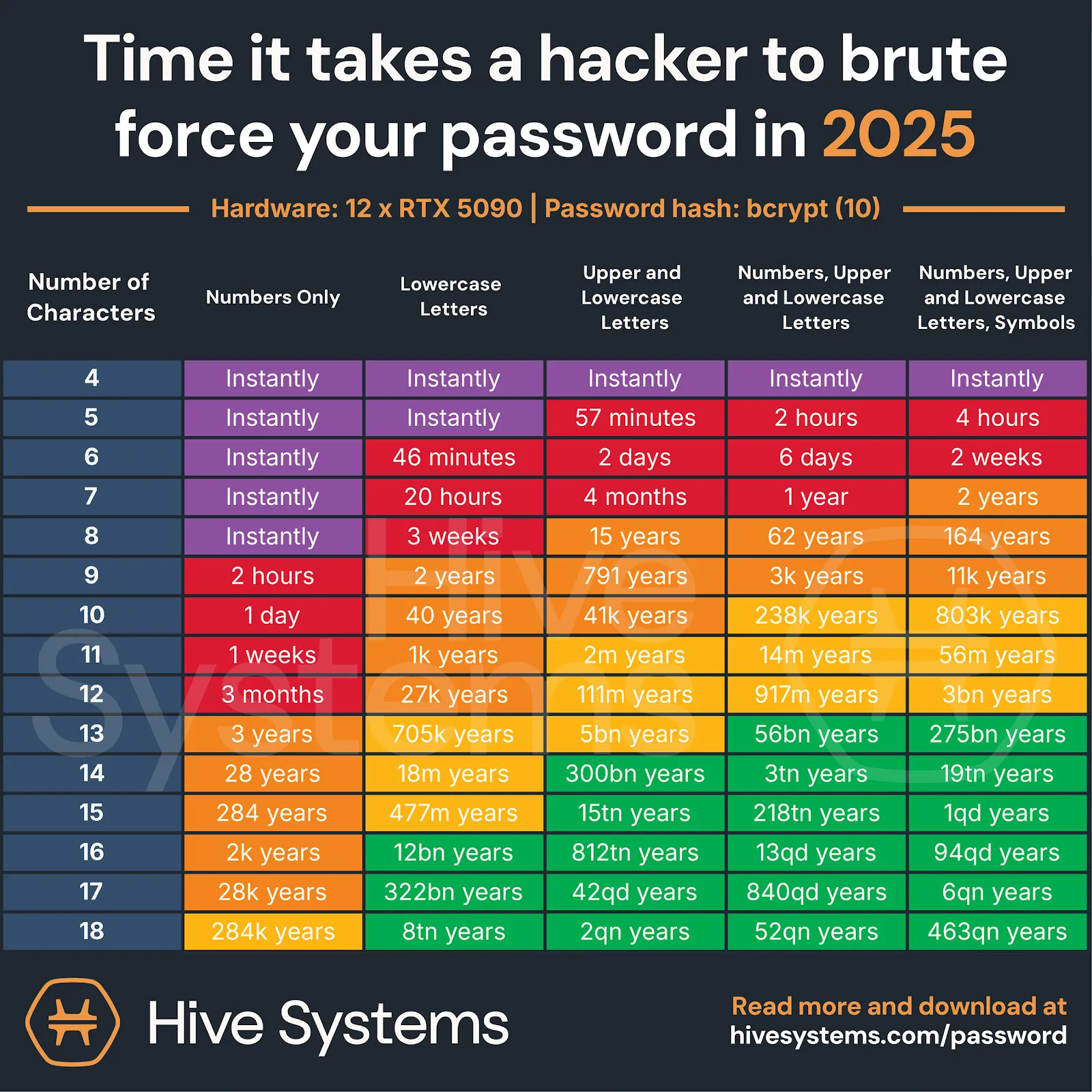
The ANSSI (National Cybersecurity Agency of France) recommends a password of at least 12 seemingly random characters, including special symbols.
The goal is to ensure that an attacker cannot discover your password automatically in a reasonable amount of time. If they can retrieve most passwords within a few hours, it’s unlikely they’ll leave their machine running for months to crack the remaining ones.

As you can see in the table below, password length and the size of the character set dramatically affect the time required for an attack.
A practical way to increase length is to use a passphrase: imagine a sentence or a few random words, then insert special characters (for example, between words) and sprinkle in some numbers.

Common Pitfalls

A compendium of the most frequent password mistakes:

Writing or saving in plain text

Countless passwords are found on sticky notes or stored in text files. The issue with paper is obvious—but what’s wrong with keeping them in a file? There’s no security: a passing virus or the theft of your computer instantly exposes your passwords.

Using a “burnt” password

Lists of the most common passwords circulate every year. For 2025, they are:

  • password
  • 123456
  • 123456789
  • guest
  • qwerty
  • 12345678
  • 111111
  • 12345
  • col123456
  • 123123

Sharing accounts

Especially common in professional environments, sharing credentials multiplies risk. If just one user is compromised, all users and data are exposed—and employees who leave the company often retain access.

Reusing your password

“I’ve found a good, long, complex password—can I use it everywhere?”
NO. As we’ve seen, breaches happen, and sooner or later your password will be exposed. Limiting the impact requires using a different password for each service.

Solutions ?

Nex week, we will discuss additional security measures (2FA) and password managers.

Sources
🇨🇵https://www.numerama.com/cyberguerre/18…annee-2024.html
🇨🇵https://blog.lockself.com/securite-mots-de-passe-anssi-2025
🇨🇵🇬🇧https://www.malwarebytes.com/fr/cybersecuri…t-is-passphrase
🇨🇵https://internetetsecurite.ch/mots-de-passe-le-plus-utilises/
  • Passwords
  • Bests practices

Next Article Password Managers and Multi-Factor Authentication

Related Articles

Mooltipass: The Open-Source Hardware Password Manager

Introduction

The Mooltipass is a secure USB key password manager, designed to store and automatically inject your credentials in an encrypted manner, while remaining completely offline. Its goal: to offer a portable vault, difficult to compromise, even when connecting to potentially infected machines.


What is Mooltipass used for?

  • Offline Storage: no direct access to encrypted content without the physical presence of the key and the entry of a PIN code.
  • Automatic Injection: connects to a computer
…
Patisuit
August 18, 2025 at 8:00 AM
0

Comparison of TOTP managers

Below is a comparison of the TOTP managers we tested.

2FauthAegisAuthyEnte AuthGoogle AuthenticatorMicrosoft AuthenticatorProton Authenticator
Desktop app❌❌❌✅❌❌✅
Mobile app❌✳️✅✅✅✅✅
Web page✅❌❌✅❌❌❌
Service icons✅✅✅✅❌✅✅
Steam Guard compatible✅✅❌❌❌❌❌
Manual entry✅✅❌✅✅✅✅
Import✅✅❌✅❌❌✅
Export✅✅❌✅✅❌✅
Dark theme✅✅❌✅✅❌✅
Self-hostable✅❌❌✅❌❌❌
LicenseAGPL-3.0GPL-3.0ProprietaryAGPL-3.0ProprietaryProprietaryOpen source
✳️Android only
Patisuit
August 11, 2025 at 8:00 AM
0

Password Managers and Multi-Factor Authentication

Following last week’s article on password-related issues, here’s one that focuses on solutions.

Password Managers

A password manager is a software tool that acts as a vault for your passwords. It addresses the challenges of creating complex, long, and unique passwords for each account without requiring you to memorize them.
These tools typically include features like auto-fill suggestions, password generation, synchronization across devices, secure storage for credit cards, and encrypted notes.

…
Patisuit
August 4, 2025 at 8:00 AM
0
There are no items at the moment.

Categories

  1. Hardware 1
  2. GNU/Linux 1
  3. Security 4
  4. Reset Filter
Powered by WoltLab Suite™
Style: Berryfox by SoftCreatR.dev